Working with USS files


 Twitter
 LinkedIn
 Facebook
 Email
EmailWorking with USS files
Viewing and accessing multiple USS profiles simultaneously
-
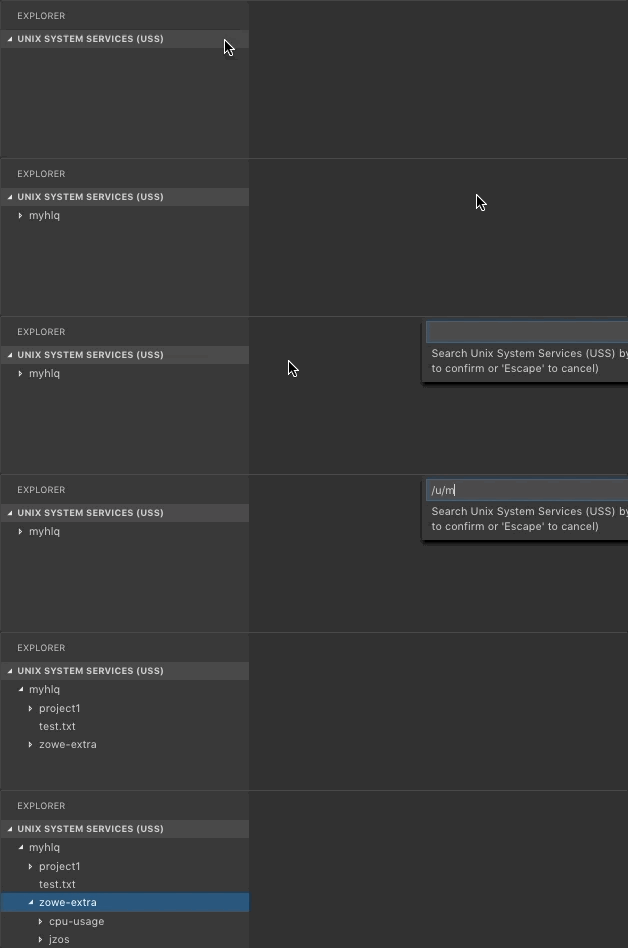
Expand the UNIX SYSTEM SERVICES (USS) tree in the Side Bar, and click the + icon.
-
Select or enter a profile in the Quick Pick menu to add it to the Side Bar.
The profile displays in the Side Bar.
Viewing Unix System Services (USS) files
-
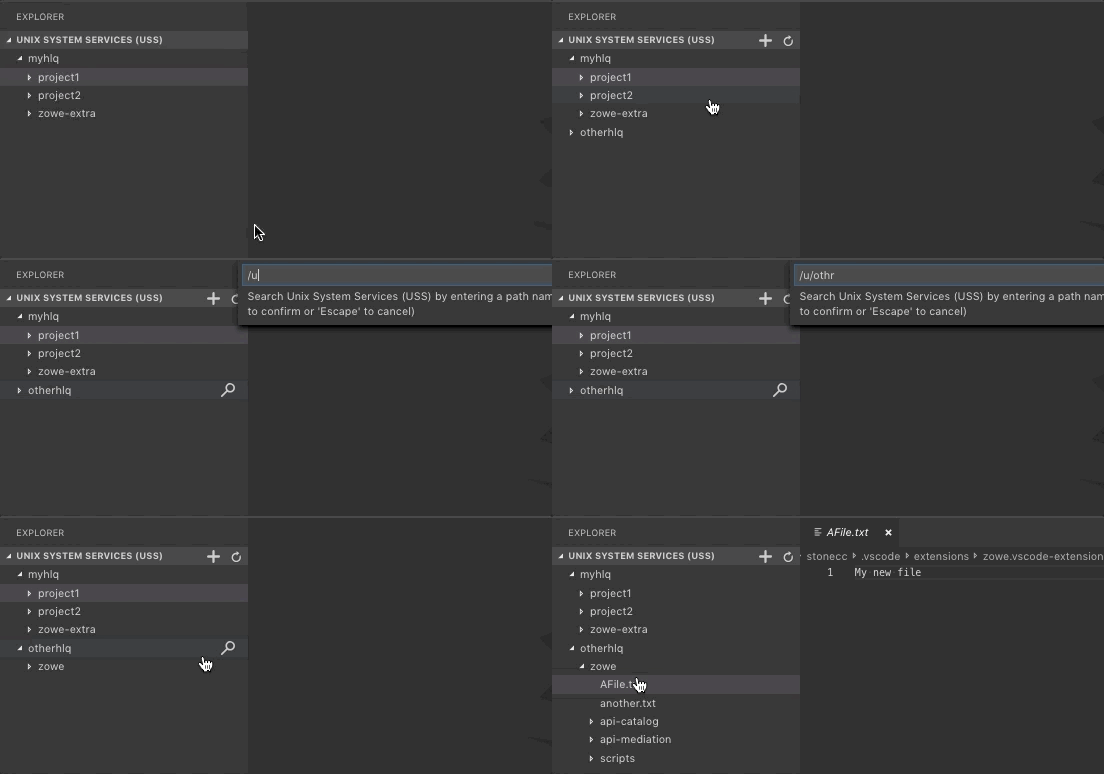
Expand the UNIX SYSTEM SERVICES (USS) tree in the Side Bar.
-
Click on the Search icon next to a profile and enter the path of the desired directory.
All child files and directories of that path display under the profile in the Side Bar.
noteYou cannot expand directories or files to which you are not authorized.
Dragging and dropping USS files
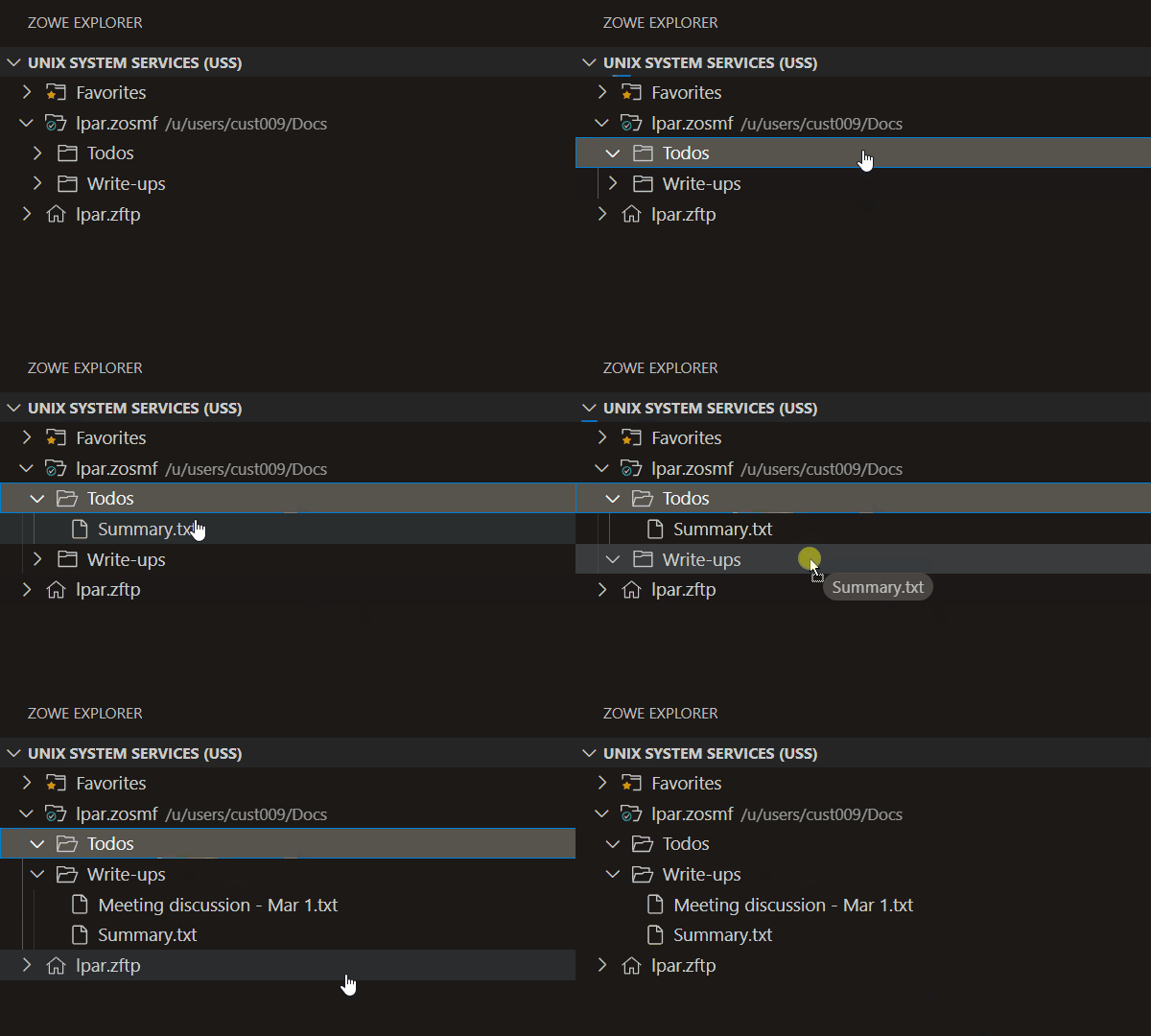
To select one or more files or folders in the tree and drag them to a folder or session to relocate them:
-
Expand the UNIX SYSTEM SERVICES (USS) tree in the Side Bar.
-
Click on the Search icon next to a profile and enter the path of the desired directory.
All child files and directories of that path display under the profile in the Side Bar.
-
Select the files or folders you want to move.
- Select multiple items by pressing the
Ctrlkey as you select each item. - Select a continuous range of items by selecting the first item in the range. Then hold down the
Shiftkey until selecting the last item in the range.
- Select multiple items by pressing the
-
Click and hold the region containing the selected items to start the drag process.
-
As the items are selected, move your cursor to the desired folder or session. Release the mouse button to start the move operation.
- If the move operation might overwrite one or more files, an “overwrite confirmation" message displays. Select Confirm to relocate these items. Select Cancel to stop the move operation.
- Items can be moved across different profiles or LPARs, which may cause a brief delay due to the transfer process.
-
When items are moved, the tree view refreshes and the moved items appear in the destination folder.
Refreshing the list of files
-
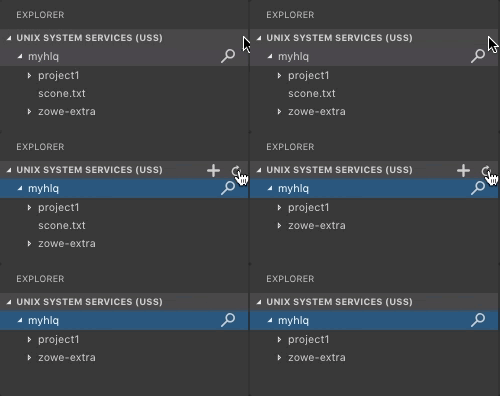
Hover over UNIX SYSTEM SERVICES (USS) in the Side Bar.
-
Click the Refresh All button.
The list of directories and child files is updated to reflect the latest changes.
Renaming USS files
-
Expand the UNIX SYSTEM SERVICES (USS) tree in the Side Bar.
-
Click on the Search icon next to a profile and enter the path of the desired directory.
All child files and directories of that path display under the profile in the Side Bar.
-
Select a USS file you want to rename.
-
Right-click the USS file and select the Rename USS file option.
-
In the input box, enter the new name of the USS file and press the
Enterkey.The file is renamed and the new name displays in the Side Bar.
Copying and pasting USS folders and files
-
Expand the UNIX SYSTEM SERVICES (USS) tree in the Side Bar.
-
Click on the Search icon next to a profile and enter the path of the desired directory.
All child files and directories of that path display under the profile in the Side Bar.
-
Select the files or folders you want to move.
- Select multiple items by pressing the
Ctrlkey as you select each item. - Select a continuous range of items by selecting the first item in the range, then hold down the
Shiftkey until selecting the last item in the range.
- Select multiple items by pressing the
-
Right-click the selected items and select the Copy option from the menu
-
Navigate in the USS tree to the folder where you want to paste the files.
Files can be moved across different profiles or LPARs, which may cause a brief delay due to the transfer process.
-
Right-click on the folder and select the Paste option from the menu.
The copied items display in the new location.
Downloading, editing, and uploading existing USS files
-
Expand the UNIX SYSTEM SERVICES (USS) tree in the Side Bar.
-
Click on the Search icon next to a profile and enter the path of the desired directory.
All child files and directories of that path display under the profile in the Side Bar.
-
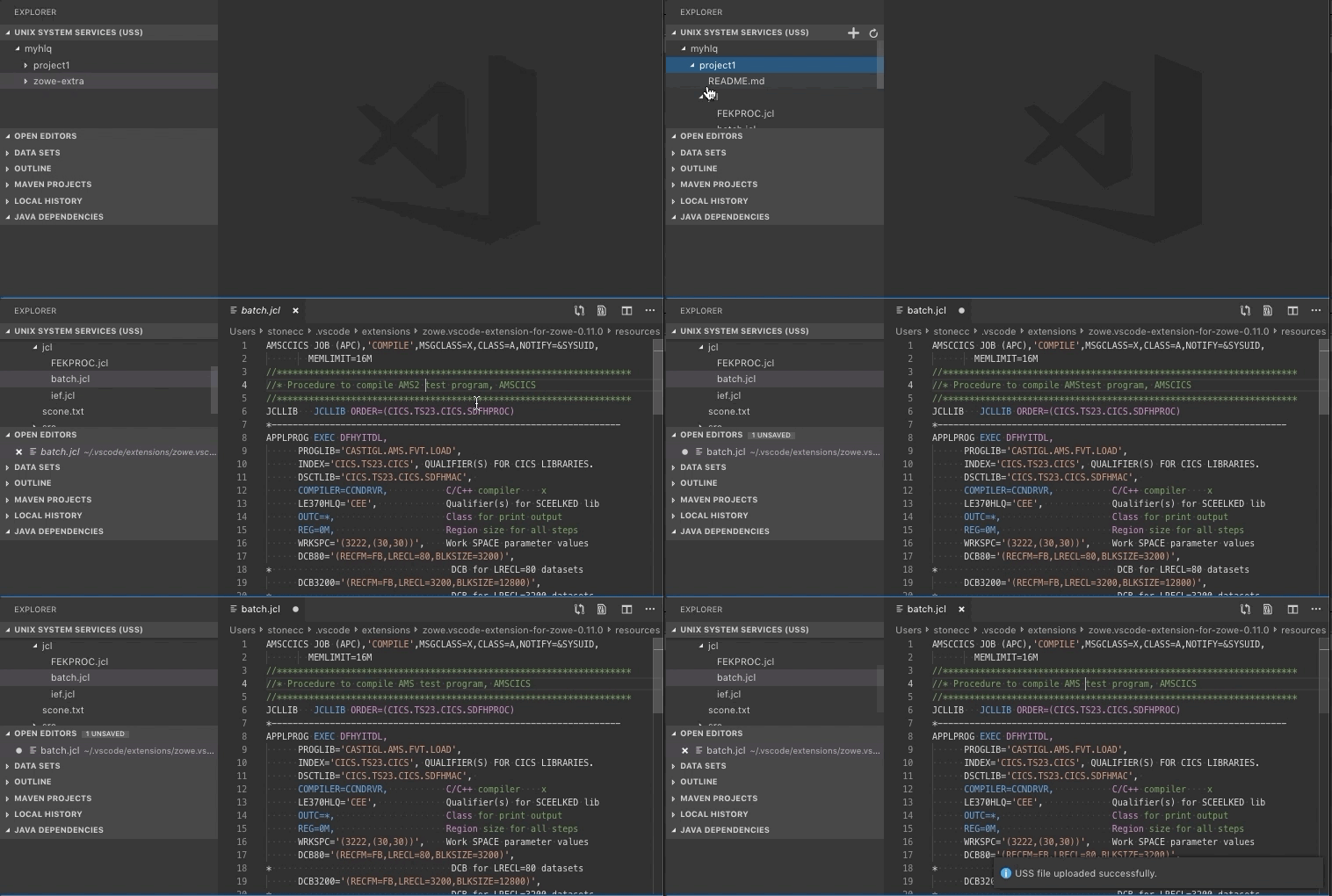
Click on the file name of the file you want to download.
The file contents display in an Editor.
noteIf you define file associations with syntax coloring, the suffix of your file is marked up.
-
Edit the document in the Editor.
-
Press the
Ctrl+SorCommand+Skeys to save the changes.The changes are saved and the USS file is uploaded to the mainframe.
Downloading a USS file to a local file
-
Expand the UNIX SYSTEM SERVICES (USS) tree in the Side Bar.
-
Click on the Search icon next to a profile and enter the path of the desired directory.
All child files and directories of that path display under the profile in the Side Bar.
-
Right-click on the desired USS file and select the Download... option.
-
In the Quick Pick menu, check or uncheck the download options:
-
Overwrite: Overwrites the existing file in the download location. Default:
unchecked -
Generate Directory Structure: Creates sub-folders based on the USS path. Default:
uncheckedIf unchecked,
/u/user/scripts/script.shdownloads toscript.sh.If checked,
/u/user/scripts/script.shdownloads tou/user/scripts/script.sh. -
Choose Encoding: Enables you to select a specific encoding for the download. Default:
uncheckedIf unchecked, the encoding configured in your connection profile is used.
-
-
Press the
Enterkey to confirm your selections. -
If you selected Choose Encoding, select the encoding from the Quick Pick menu. If not, proceed to the next step.
-
In the file explorer dialog, select the location where you want to download the file and click Select Download Location.
The file is downloaded to the selected location with the specified options applied.
-
To open the downloaded file in VS Code, click Open File on the download complete notification.
Downloading a USS directory to a local directory
-
Expand the UNIX SYSTEM SERVICES (USS) tree in the Side Bar.
-
Click on the Search icon next to a profile and enter the path of the desired directory.
All child files and directories of that path display under the profile in the Side Bar.
-
Right-click on the desired USS directory and select the Download... option.
-
In the Quick Pick menu, check or uncheck the download options:
-
Overwrite: Overwrites existing files when downloading directories. Default:
unchecked -
Generate Directory Structure: Creates sub-folders based on the USS path. Default:
uncheckedIf unchecked,
/u/user/project/downloads toproject/.If checked,
/u/user/project/downloads tou/user/project/with full directory structure. -
Follow Symlinks: Follows symbolic links to their targets instead of stopping at them. Default:
checked -
Apply Filter Options: Opens additional filtering options to control which files are downloaded.
In the subsequent Quick Pick menu, click on an option to change its value.
When desired filters are set, click Ready to download.
To cancel setting filters, press Esc to return to the previous menu, then uncheck Apply Filter Options.
Available filter options include:
-
Include Hidden Files: Includes hidden files (files beginning with
.) in the download. Default:unchecked -
Search All Filesystems: Searches across all mounted filesystems instead of limiting to the current filesystem. Default:
unchecked -
Group: Filters by group owner or GID.
-
User: Filters by user name or UID.
-
Modification Time: Filters by modification time in days (for example,
+7for files older than 7 days,-1for files modified within the last day,-30for files modified exactly 30 days ago) -
Size: Filters by file size (for example,
+100Mfor files larger than 100MB,-500Kfor files smaller than 500KB,1Gfor files exactly 1GB) -
Permissions: Filters by permission octal mask (for example,
755,-644) -
File Type: Filters by file type (
c=character special file,d=directory,f=file,l=symlink,p=FIFO (named pipe),s=socket) -
Depth: Depth of directories to download. (for example, a depth of
1will only download the current directory)
tipTo clear/unset a filter, click on an option and leave the input Quick Pick blank.
-
-
Choose Encoding: Enables you to select a specific encoding for the download. Default:
uncheckedIf unchecked, the encoding configured in your connection profile is used. You can also configure automatic encoding detection for files in the directory.
-
-
Press the
Enterkey to confirm your selections. -
If you selected Apply Filter Options, configure the desired filters in the subsequent Quick Pick menu and press the
Enterkey. If not, proceed to the next step. -
If you selected Choose Encoding, select the encoding from the Quick Pick menu. If not, proceed to the next step.
-
In the file explorer dialog, select the location where you want to download the directory and click Select Download Location.
The directory and its contents are downloaded to the selected location with the specified options applied.
-
To open the downloaded directory in the file explorer, click Open Directory on the download complete notification.
Uploading a local file to a USS directory
-
Expand the UNIX SYSTEM SERVICES (USS) tree in the Side Bar.
-
Click on the Search icon next to a profile and enter the path of the desired directory.
All child files and directories of that path display under the profile in the Side Bar.
-
Right-click on the desired directory and select the Upload Files... option to upload one or more local files to the directory.
A file explorer window opens.
-
In the file explorer, select the desired file(s) and click Upload Files.
The selected file(s) is uploaded to the USS directory and appears as new file name in the UNIX SYSTEM SERVICES (USS) tree.
Comparing USS files
-
Expand the UNIX SYSTEM SERVICES (USS) tree in the Side Bar.
-
Click on the Search icon next to a profile and enter the path of the desired directory.
All child files and directories of that path display under the profile in the Side Bar.
-
Right-click on the desired file and select the Select for Compare option.
-
Right-click a second file and select the Compare with Selected option.
The first selected file displays in an Editor on the left; the second file displays on the right.
Creating and deleting USS files and directories
Creating a directory
-
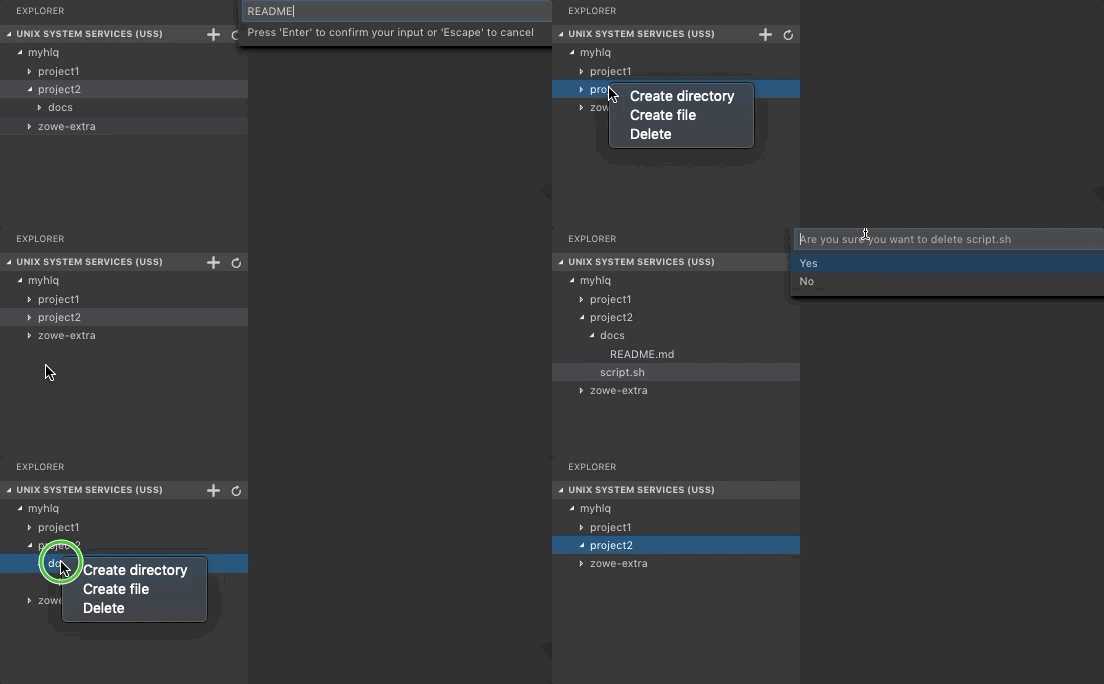
Expand the UNIX SYSTEM SERVICES (USS) tree in the Side Bar.
-
Click on the Search icon next to a profile and enter the path of the desired directory.
All child files and directories of that path display under the profile in the Side Bar.
-
Right-click the desired directory and select the Create Directory option.
-
Enter the directory name in the input box.
-
Press the
Enterkey to create the directory.A new directory is created and displays in the selected directory.
Creating a file
-
Expand the UNIX SYSTEM SERVICES (USS) tree in the Side Bar.
-
Click on the Search icon next to a profile and enter the path of the desired directory.
All child files and directories of that path display under the profile in the Side Bar.
-
Right-click the desired directory and select the Create File option.
-
Enter the file name in the input box.
-
Press the
Enterkey to create the directory.A new file is created and displays in the selected directory.
Deleting a file
-
Expand the UNIX SYSTEM SERVICES (USS) tree in the Side Bar.
-
Click on the Search icon next to a profile and enter the path of the desired directory.
All child files and directories of that path display under the profile in the Side Bar.
-
Right-click on the file you want to remove.
-
Select the Delete option and click Delete again to confirm and delete the file.
The file is deleted and no longer displays in the selected directory.
Deleting a directory
-
Expand the UNIX SYSTEM SERVICES (USS) tree in the Side Bar.
-
Click on the Search icon next to a profile and enter the path of the desired directory.
-
Right-click the directory you want to remove.
-
Select the Delete button and click Delete again to confirm and delete the directory and all its child files and directories.
The directory is deleted and no longer displays in the Side Bar.